
FactoryTalk View SE A&E: SeQent Integration Requirements
Short answer
SeQent's FPAMGWFTVSEAE gateway brings FactoryTalk View SE Alarms & Events into FirstPAGE Alarm Manager. Its host depends on the FactoryTalk Directory type.
The FirstPAGE Alarm Manager Gateway for FactoryTalk View SE Alarm & Events (FPAMGWFTVSEAE) brings FactoryTalk View SE A&E alarms into FirstPAGE Alarm Manager.
1. Determining the Install Machine
The Windows host for FPAMGWFTVSEAE depends on whether the FactoryTalk Directory is Local or Network Distributed:
- Local Directory: Install
FPAMGWFTVSEAEon the local machine. - Network Directory:
FPAMGWFTVSEAEcan be installed on any machine where FT Services Platform or FT Client is installed and connected to the correct Directory.
2. Abbreviations & Definitions
| Abbreviation | Definition |
|---|---|
FP | FirstPAGE |
FPAM | FirstPAGE Alarm Manager |
FPAMGWFTVSEAE | FPAM Gateway for FTView SE A&E |
FTView SE A&E | FactoryTalk View SE Alarm & Events |
3. Environment Requirements
Prepare the environment for FPAMGWFTVSEAE implementation:
- Install the required FactoryTalk component(s) on the Windows host that will run
FPAMGWFTVSEAE.- Minimum requirement: FactoryTalk Services Platform.
- Recommended requirement: FactoryTalk Client.
- For an existing Directory, open and complete the Specify FactoryTalk Directory Server Location Utility.
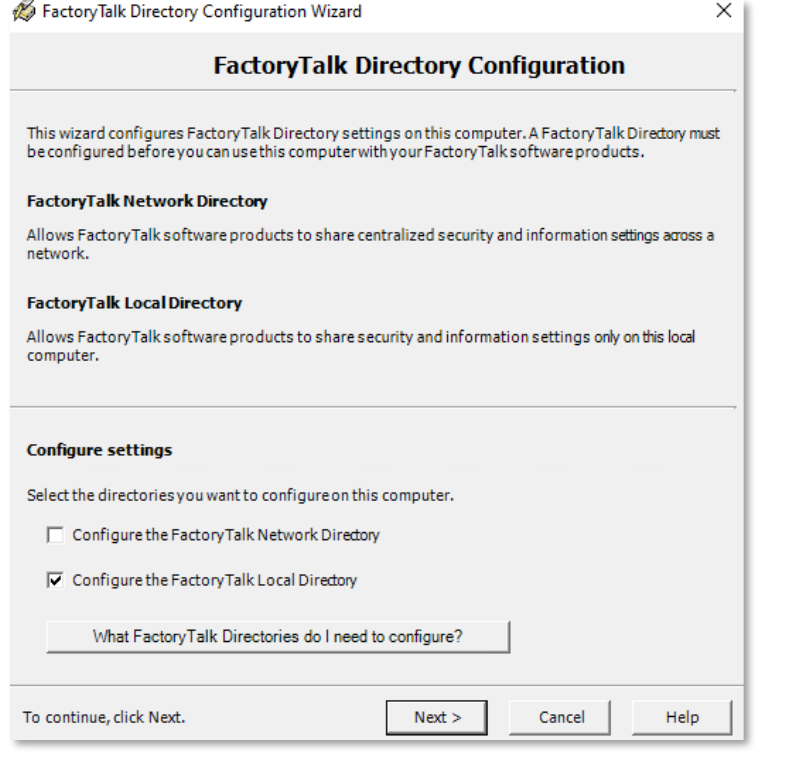
- For a new Directory, open and complete the FactoryTalk Directory Configuration Wizard, selecting the appropriate FactoryTalk Local or Network Directory option.
- Set up DCOM on the Windows host where
FPAMGWFTVSEAEwill be installed, as per Rockwell Automation documentation. This is required to support browsing of FactoryTalk View SE A&E alarms. See 5. DCOM Setup for details.
Note: No Rockwell license is required for FactoryTalk Client in this environment. FactoryTalk Client is recommended for troubleshooting and testing.
4. SeQent Software Requirements
Prepare the following details for configuring FPAMGWFTVSEAE.
4.1 Identify the Project RNA path
Method 1: FactoryTalk View Studio
- Select and expand a Tag Event and Alarm Server.
- Open the Alarm and Event Setup.
- Note the RNA path in the title bar of the right pane.
Example of the RNA path in FT View Studio:

Method 2: FactoryTalk Diagnostic Viewer
- Open the FactoryTalk Diagnostic Viewer.
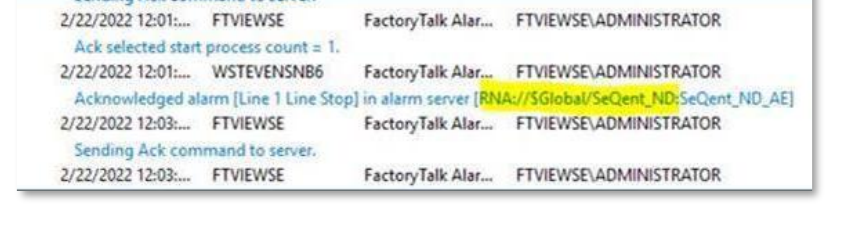
- Look for a log line indicating the Project RNA path.
Example of the RNA path in FT Diagnostic Viewer:
4.2 Identify or create the FactoryTalk Directory credentials
Identify or create the FactoryTalk Directory username and password that will be used in the SeQent configuration, then check the Security Policy Properties to confirm Logon Session Lease is manageable.
- In FactoryTalk Administration Console or Studio, expand System > Policies > System Policies.
- Right-click Security Policy and select Properties.
- In Security Policy Properties, select + to expand Account Policy Settings.
- Set Logon Session Lease to
0(preferred; zero denotes infinite).
Why 0: Setting this value to
0allows the logon session to be used indefinitely, giving the gateway continuous access.
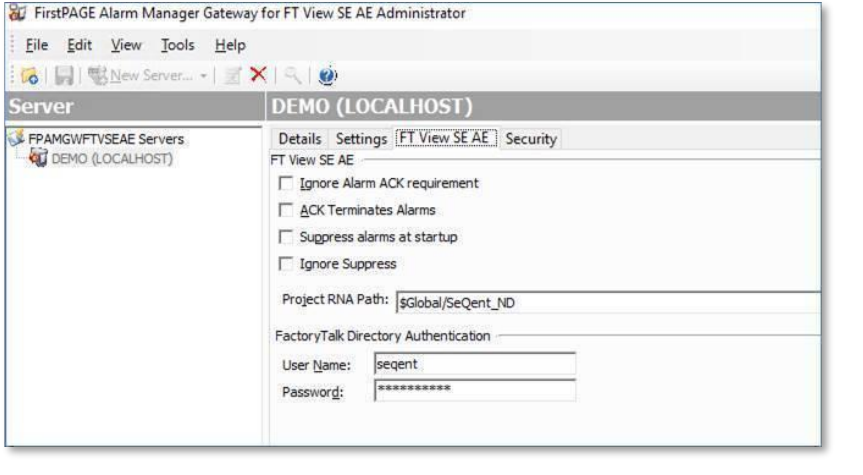
Example of a Project RNA path and FactoryTalk Directory credentials entered into FPAM Gateway for FTView SE A&E:
5. DCOM Setup
Guide to setting up DCOM as described in Rockwell KB documentation.
5.1 Create a Windows local group
- Open Start > Settings > Control Panel > Administrative Tools > Computer Management.
- Expand Local Users and Groups > Groups.
- Select the Distributed COM Users group, or create it if it does not already exist.
- Add the following to this group:
- Anonymous Logon
- Authenticated Users
- Everyone
- Network
5.2 Make the DCOM changes
- From the taskbar, select Start > Run.
- In the Open box, type
DCOMcnfgand click OK. - Under Console Root, expand the Component Services node.
- Expand the Computers folder.
- Right-click the My Computer node and select Properties.
- Click the Default Properties tab:
- Select the checkbox for Enable Distributed COM on this computer.
- Set Default Authentication Level to
Connect. IfConnectdoes not work, tryNone. - Set Default Impersonation Level to
Identify.
- Select the COM Security tab.
- Under the Edit Limits… and Edit Default… buttons for both Access Permissions and Launch and Activation Permissions, add the Distributed COM Users group created above and check all the Allow checkboxes. If any members of the Distributed COM Users group are listed individually, ensure they also have Allow checked for all boxes.
- Restart the Windows host where the changes were applied.

Looking for more?
Licensed customers can log in to the Customer Care Portal for detailed troubleshooting guides, release notes, and product downloads.


